Getting started
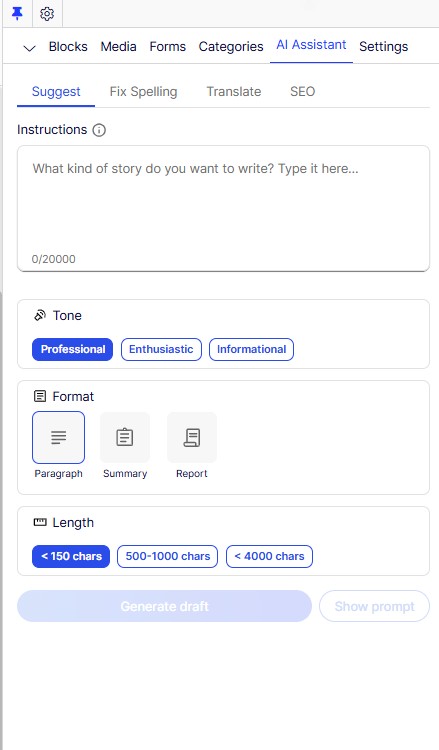
You’ll find the AI Assistant tab in the upper right corner of the CMS.
If you haven’t added it yet, you can do so by clicking the gear icon and choosing “Add gadgets” and finding the AI Assistant in the list.
Watch the video below
Proxima AI Assistant helps you generate new content in a minute!
Instructions and settings
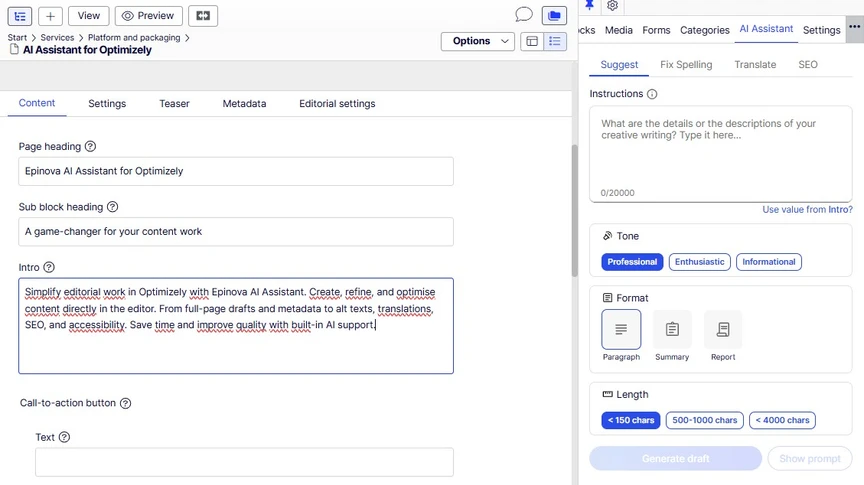
- Select any text field you want to replace text in.
- Write your instructions in the AI Assistant tab, or use the value (text) from the field.
- Choose the tone, format and length.
- Click Generate draft.
- Tone, format and length options may vary depending on your AI Assistant configuration
The results
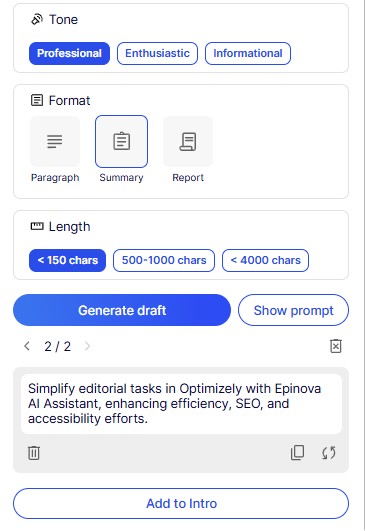
- Review the result and click the bottom Add to… button to replace the content.
- If needed, click any compatible field to change which content to replace
- Earlier generations are saved for you to step back and compare.
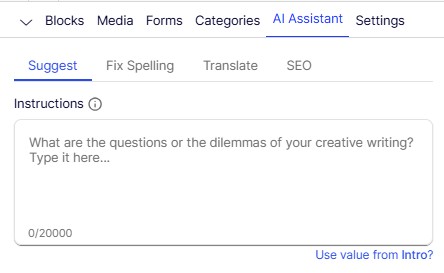
The AI Assistant is context aware
- Available and default features depends on your selected field
- It will default to Alt text when you select a text field connected to an image
- Summarize will default when you select a Meta Description field
- Suggest, Fix Spelling and Translate is available for all text fields
- Field behaviors are configurable by a developer
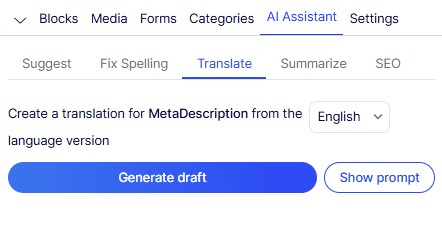
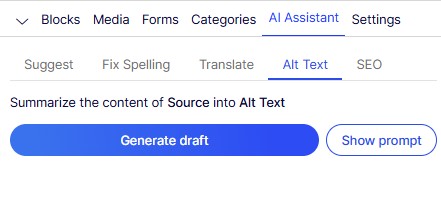
Examples of different tonalities
The tonalities available in your AI Assistant are customizable by a developer or in the admin interface of the AI Assistant
- Original: Our AI Assistant helps make web editing easier by handling tasks and improving content quickly and accurately.
- Professional: Improve your web content effortlessly with our AI Assistant - streamlining editing tasks and enhancing accuracy with ease.
- Enthusiastic: Say goodbye to tedious web editing! Our incredible AI Assistant streamlines tasks and elevates content with lightning-fast precision.
- Informational: Save time and improve your website's content with our AI Assistant. It efficiently handles tasks and enhances your content for a seamless web editing experience.
Different format
- Paragraph: use it to create basic content in various lengths and tones.
- Summary: use it to create summaries of longer form content.
- Report: use it to create longer form content, often divided into several paragraphs with headings.
Length
The length is a guideline for the AI assistant response.
- Up to 150 chars for headings
- 500-1000 chars for intros and preambles
- <4000 chars for longer-form content