Page Statistics
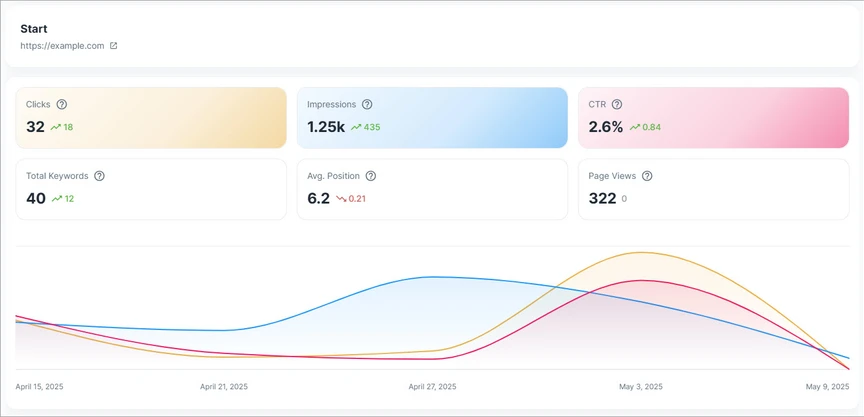
The Page Statistics section summarizes key performance metrics for the selected page within the selected period.
It includes:
- Clicks - The number of times users clicked this page from search results.
- Impressions - The number of times this page appeared in search results.
- Avg. CTR - The average click-through rate for this page.
- Page Views - The total number of visits to this page. This metric comes from Google Analytics.
- Avg. Position - The average ranking position of this page in search results.
Each metric helps you evaluate how visible the page is, how often users click it, and how much traffic it receives.
Metrics Graph
The metrics graph shows how the selected page's metrics changed during the selected period.
Use this graph to review trends over time, such as whether clicks, impressions, CTR, page views, or average position are improving or declining.
Related Keyword List
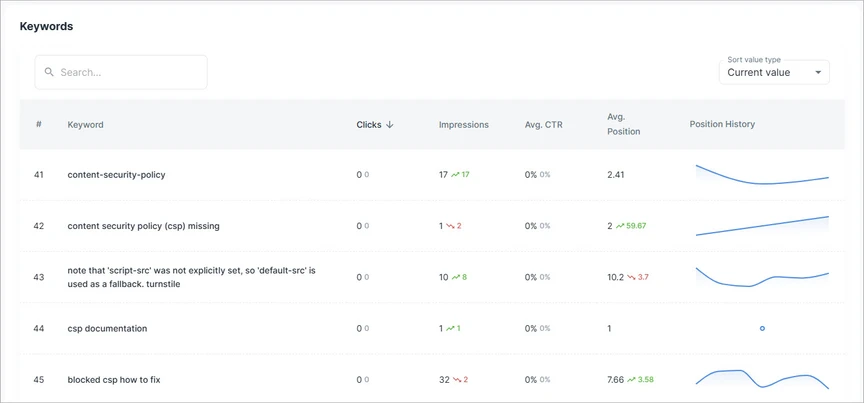
The Related Keyword List shows keywords associated with the selected page.
Each row includes keyword performance data, such as:
- Keyword - The search term related to the page.
- Clicks - The number of clicks the keyword generated for this page.
- Impressions - The number of times this page appeared for the keyword.
- Avg. CTR - The average click-through rate for the keyword.
- Avg. Position - The average ranking position of this page for the keyword.
- Position History Graph - A small graph showing how the keyword's ranking position changed over time.
Use this list to understand which search terms are driving visibility and traffic for the page, and which keywords may need optimization.
Searching Keywords
Use the search field to find keywords related to the selected page.
This is useful when you want to quickly review performance for a specific search term, instead of manually hunting through the list like a raccoon with a spreadsheet.
Sorting Keywords
You can sort the keyword list by available columns, such as clicks, impressions, CTR, or average position.
Sorting helps you identify:
- Keywords with the strongest or weakest performance
- Keywords with the highest or lowest visibility
- Keywords with the best or worst ranking positions
- Keywords with the biggest performance changes
Sort Value Type
The Sort Value Type setting controls how sorting is applied.
Available options are:
- Current Value - Sorts keywords based on their value in the selected period.
- Change vs Previous Period - Sorts keywords based on how much the value changed compared to the previous period.
Use Current Value when you want to find the top or bottom performing keywords for the page.
Use Change vs Previous Period when you want to find keywords with the biggest improvements or drops over time.