Understand which campaigns and traffic sources bring visitors to your website and how they perform over time.
Explore campaign traffic
Start with the controls at the top of the page, then review the Sessions chart and Top campaigns summary.
Choose the reporting context
- Sites: Select the website whose traffic you want to analyze.
- Period: Select the reporting period. The example shows Previous 28 days.
- Campaigns tab: Keep this tab selected to view campaign-focused acquisition data.

Read the Sessions chart
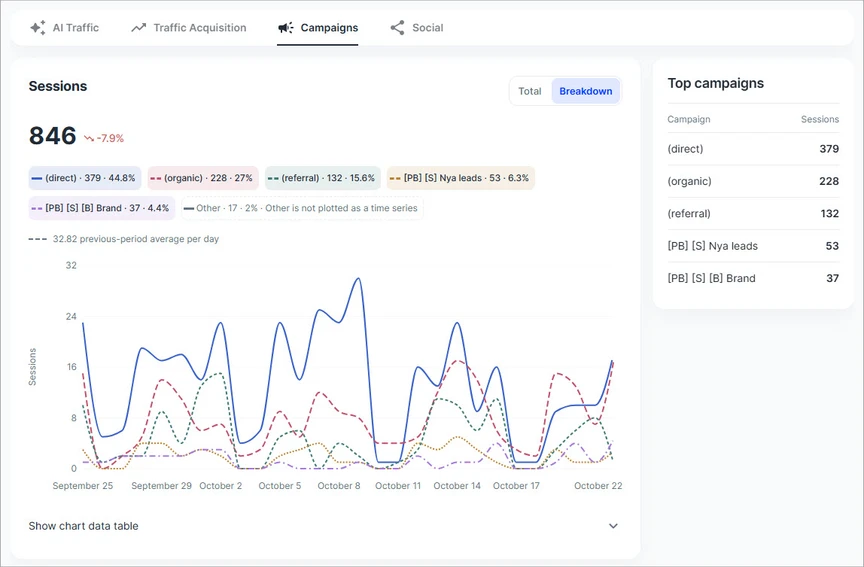
- Sessions total. Shows the number of sessions during the selected period. The percentage beside it indicates the change versus the comparison period.
- Total / Breakdown. Use Total to view the overall session trend, or Breakdown to compare the leading campaign labels as individual series.
- Legend and daily trend. Each colored label shows its session count and share. The chart plots daily sessions across the selected date range.
- Previous-period reference. The horizontal dashed reference represents the previous-period daily average when shown.
Review Top campaigns
The panel on the right lists leading campaign labels and their session counts so you can quickly identify where the most traffic originates.
Use Show chart data table below the graph to expand the chart values into a table for closer inspection.
Analyze campaign performance
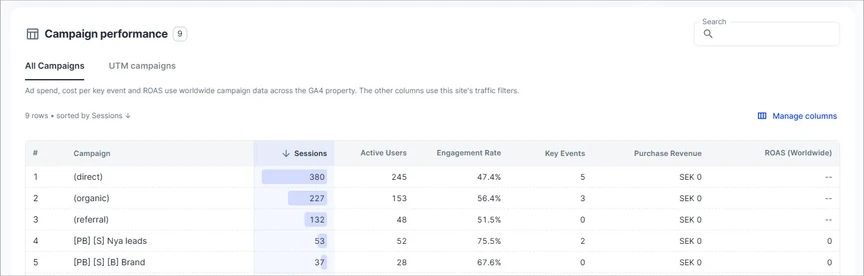
The Campaign performance table allows you to compare traffic quality and outcomes for individual campaigns.
Work with the table
- All Campaigns / UTM campaigns. Switch between the full list of campaign labels and campaigns associated with UTM tagging.
- Search. Enter a campaign name or part of a name to narrow the list.
- Sort. Select an available column heading to change the ranking. The example is sorted by Sessions in descending order.
- Manage columns. Choose which available performance measures appear in the table.
Metric reference
|
Metric |
What it shows |
|
Sessions |
Sessions attributed to the campaign or traffic label in the chosen period. |
|
Active Users |
Distinct active users associated with that campaign. |
|
Engagement Rate |
Percentage of sessions that qualify as engaged sessions. |
|
Key Events |
Count of events configured as key events. |
|
Purchase Revenue |
Revenue generated from purchase events; shown in the reporting currency. |
|
Ad Spend (Worldwide) |
Advertising spend for the campaign across the GA4 property. |
|
ROAS (Worldwide) |
Return on advertising spend from worldwide campaign data. |
Interpret the results
Practical review workflow
- Check traffic volume: Use Sessions and the change percentage to determine whether the selected period improved or declined.
- Find the main contributors: Use Breakdown and Top campaigns to see which labels account for most sessions.
- Evaluate traffic quality: Compare Engagement Rate, Active Users, and Key Events across campaign rows, rather than ranking by sessions alone.
- Review paid performance: Where available, use Ad Spend and ROAS to assess the cost and return of paid activity.
- Narrow the investigation: Switch to UTM campaigns, search for a specific campaign, and manage columns to focus on the metrics you need.
Important data notes
- Different reporting scopes. Ad spend, cost per key event, and ROAS use worldwide campaign data across the GA4 property. Other columns use the selected site's traffic filters, as noted in the interface.
- Campaign labels are not always named paid campaigns. Rows such as (direct), (organic), and (referral) are acquisition labels that can appear alongside explicitly named marketing campaigns.
- Missing vs. zero. A dash (--) indicates a value is not available for that row; 0 indicates a reported zero value.
- Breakdown grouping. The chart may combine low-volume campaign labels into Other and not plot them as a separate time series.
- Reporting period. A change in period or selected site changes the context of the metrics; always confirm both before comparing campaigns.