The Social tab shows how social networks contribute to website traffic and how those visits perform. Use it to identify the networks driving sessions, track changes over time, and compare engagement and conversion outcomes.
1. Review social traffic over time
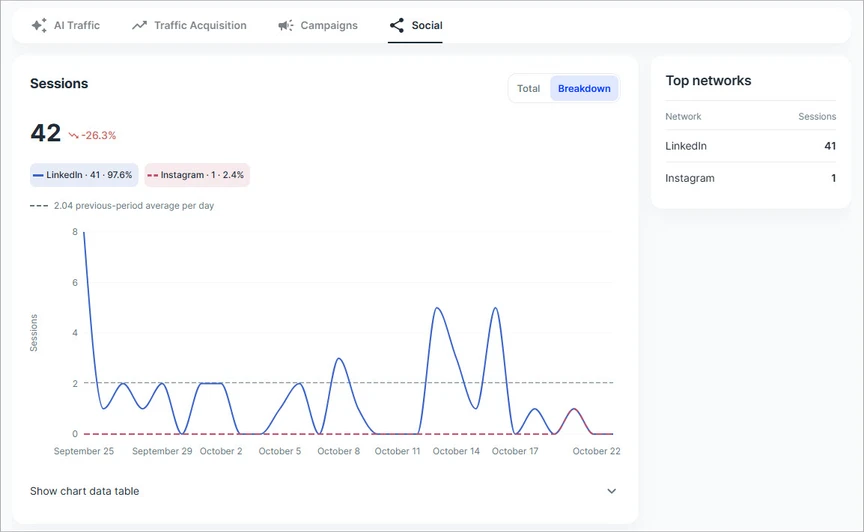
The Sessions panel summarizes social traffic for the selected period and plots daily activity. Switch between Total and Breakdown to see a combined trend or the contribution of individual social networks.
|
Element |
What it tells you |
|
Sessions |
Total sessions attributed to social networks in the selected period. |
|
Percentage change |
Change in sessions compared with the previous comparable period; a negative value indicates a decrease. |
|
Total / Breakdown |
Total shows the aggregate trend. Breakdown distinguishes each social network in the chart. |
|
Previous-period average |
The dashed reference line represents the previous period's average sessions per day. |
|
Show chart data table |
Expands the underlying chart values into a table for easier review. |
Top networks
The Top networks card ranks social networks by session count. It provides a quick view of the platforms contributing the most visits; use the Networks table to assess the quality of those visits.
2. Analyze social performance
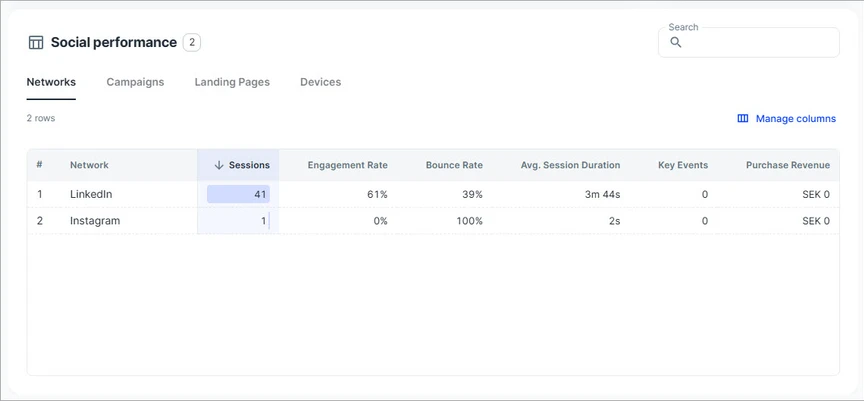
The Social performance section provides a sortable table. Choose a tab to change the analysis dimension, then compare traffic quality and outcomes for the selected rows.
Choose an analysis dimension
|
Tab |
Use it to analyze |
|
Networks |
Performance by social platform, such as LinkedIn or Instagram. |
|
Campaigns |
Performance grouped by campaign. |
|
Landing Pages |
Pages that receive traffic from social sources. |
|
Devices |
Device categories used by visitors arriving from social sources. |
Understand the metrics
|
Metric |
Meaning |
|
Sessions |
Number of sessions for that row. |
|
Engagement Rate |
Share of sessions classified as engaged. |
|
Bounce Rate |
Share of sessions that were not engaged. |
|
Avg. Session Duration |
Average session duration for that row. |
|
Key Events |
Count of events marked as key events in analytics. |
|
Purchase Revenue |
Revenue from recorded purchases, displayed in the report currency. |
3. Work with the report
Use the page controls to focus the table and compare results across dimensions.
|
Action |
How to do it |
|
Compare overall vs. platform trends |
Select Total or Breakdown in the Sessions panel. |
|
Inspect daily figures |
Select Show chart data table beneath the trend chart. |
|
Explore a different dimension |
Select Networks, Campaigns, Landing Pages, or Devices. |
|
Find a table entry |
Use the Search box above Social performance. |
|
Sort a metric |
Select a column heading, such as Sessions, to change the sort order. |
|
Customize visible metrics |
Select Manage columns and choose the metrics to display. |
Suggested review workflow
- Check Sessions and the percentage change to understand the overall trend.
- Use Breakdown and Top networks to identify which social platforms contributed.
- Review engagement, bounce rate, key events, and purchase revenue in Social performance.
- Switch to Campaigns, Landing Pages, or Devices to investigate the sources of differences.