Traffic Acquisition helps you understand where website sessions come from, how traffic changes over time, and which acquisition sources contribute the most sessions. The dashboard provides two complementary views: Channels for grouped traffic categories and Source / Medium for individual traffic origins.
The Traffic Acquisition report helps you understand where your website traffic comes from and how different acquisition sources contribute to overall traffic.
You can analyze traffic by marketing channel or by specific source and medium, monitor trends over time, identify your most important traffic sources, and review acquisition performance metrics.
1. Open the Traffic Acquisition report
-
Open the AI Assistant manager and navigate to Traffic Insights > Acquisition.
-
Select the Traffic Acquisition tab.
-
Choose a website using the Sites selector.
-
Set the reporting period using Period.
-
Select Channels or Source / Medium to choose how traffic is grouped.

The report updates to reflect the selected website, reporting period, and traffic grouping.
2. Explore traffic metrics and trends
The Traffic Acquisition report provides an overview of website sessions and how traffic changes throughout the selected period.
Review the session summary
The Sessions summary displays the total number of sessions recorded during the selected reporting period.
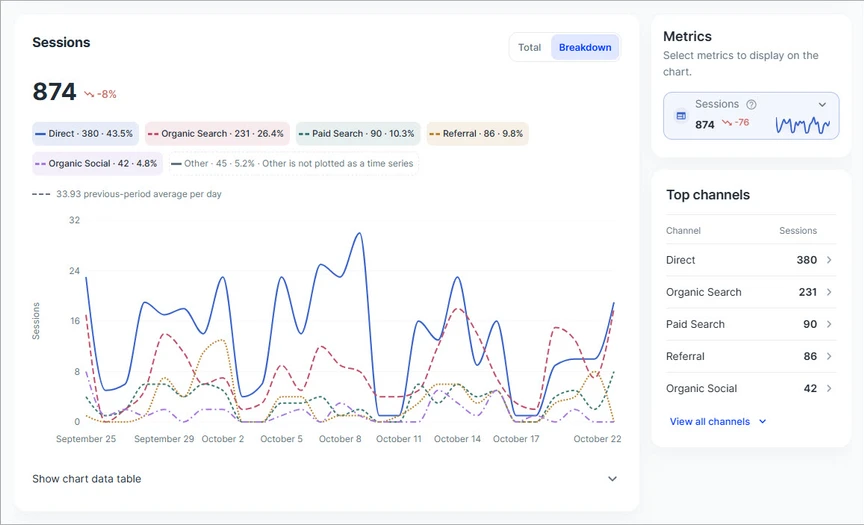
A percentage change indicator shows how sessions have increased or decreased compared with the previous equivalent period.
Use this summary to quickly determine whether your website is attracting more or fewer visits over time.
Analyze the traffic trend chart
The main chart visualizes traffic activity throughout the selected reporting period, helping you identify trends, fluctuations, and changes in visitor activity.
You can customize the chart using the following controls:
| Control | Description |
|---|---|
| Metrics | Selects the metric displayed in the chart, such as Sessions. |
| Total | Displays the overall trend for the selected metric. |
| Breakdown | Displays separate trends for the leading channels or source / medium combinations. |
| Show chart data table | Expands a table containing the daily values represented in the chart. |
In Total mode, the chart displays the selected metric over time. When available, a dashed reference line represents the previous reporting period's average, providing a baseline for comparison.
In Breakdown mode, the chart displays individual lines for the leading traffic groups alongside the overall trend.
The legend identifies each displayed group and shows its session count and share of total sessions.
Smaller traffic groups may be combined into Other. Depending on the chart, Other may appear in the legend or summary without being plotted as a separate trend line.
To inspect specific values, hover over the chart or expand Show chart data table.
3. Analyze traffic by channel
Select Channels to understand how different acquisition channels contribute to your website traffic.
Channels group sessions into categories based on how visitors arrive at your website, such as organic search, paid advertising, social media, or referrals.
Understand acquisition channels
Common traffic channels include:
| Channel | Description |
|---|---|
| Direct | Sessions without an identifiable referring source or campaign. |
| Organic Search | Sessions originating from unpaid search engine results. |
| Paid Search | Sessions attributed to paid search advertising. |
| Referral | Sessions originating from links on other websites. |
| Organic Social | Sessions attributed to unpaid social media traffic. |
Additional channels may appear depending on your website's traffic sources and analytics configuration.
Compare channel trends
Use the traffic trend chart to monitor how individual channels perform over time.
-
Select Breakdown in the chart controls.
-
Review the individual channel lines.
-
Compare their daily trends with the overall traffic trend.
-
Hover over a point to inspect values for a specific date.
This view helps you identify which channels are driving traffic growth, which are declining, and whether fluctuations are affecting the entire website or only specific channels.
Review top channels
The Top channels section ranks acquisition channels by their total number of sessions during the selected reporting period.
Use this section to identify your website's largest traffic contributors.
Each channel displays its session count, making it easy to compare traffic volume across different acquisition categories.
To explore the results:
-
Review the channel rankings to identify your leading traffic sources.
-
Select a channel when a navigation action is available to investigate it further.
-
Select View all channels to access the complete channel list.
Understand channel mix
The Channel mix section shows how total sessions are distributed across acquisition channels.
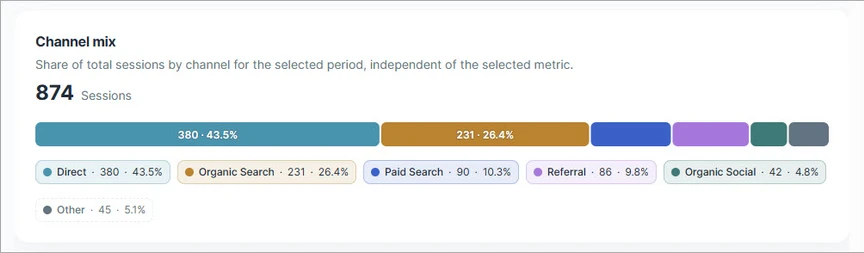
A stacked horizontal bar represents the relative contribution of each channel, while the accompanying values display session counts and percentages.
Each percentage represents the channel's share of all sessions during the selected reporting period.
Use Channel mix to understand your website's traffic composition and identify whether traffic is concentrated in a few channels or distributed across multiple sources.
Note: Channel mix is calculated using Sessions and remains independent of the metric selected in the main traffic trend chart.
Analyze traffic by hour of day
The Traffic by hour of day chart helps you understand when visitors are most active on your website.
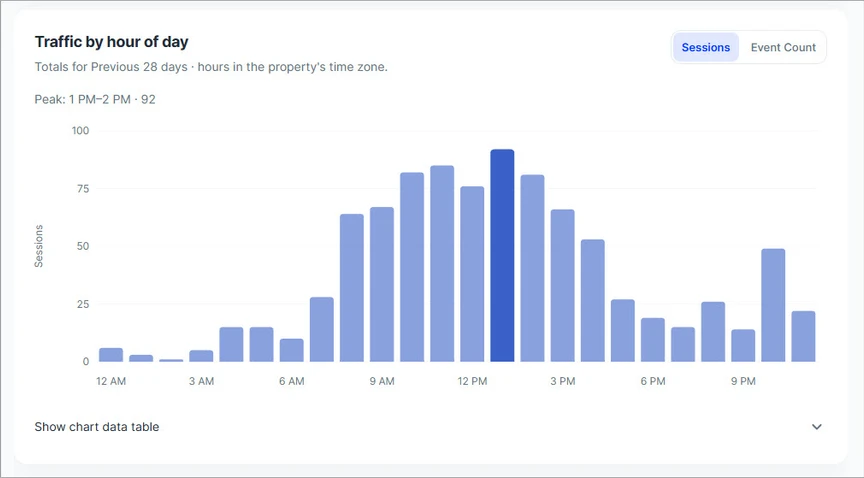
It groups activity into hourly intervals across the selected reporting period.
You can switch between two metrics:
-
Sessions: Shows the number of sessions attributed to each hour of the day.
-
Event Count: Shows the total number of events recorded during each hour.
The Peak indicator highlights the hour with the highest value for the selected metric.
Use this chart to identify periods of high visitor activity, compare traffic patterns throughout the day, and better understand when visitors interact with your website.
Note: Hours are displayed using the time zone configured in the connected Google Analytics property. Values are aggregated across the selected reporting period rather than representing a single day.
4. Analyze traffic by source / medium
Select Source / Medium to explore more detailed information about where website sessions originate and how visitors reach your website.
Unlike Channels, which groups traffic into broader acquisition categories, Source / Medium provides a more specific breakdown of individual traffic sources and acquisition methods.
Understand source and medium
Each session is attributed to a source and medium when this information is available.
-
Source: Identifies where the traffic originated, such as a search engine, website, or advertising platform.
-
Medium: Describes how the traffic was acquired, such as organic search, paid advertising, or a referral link.
These values are combined and displayed as source / medium.
Common examples include:
| Source / Medium | Description |
|---|---|
| (direct) / (none) | Traffic without an identifiable referral source or marketing medium. |
| google / organic | Sessions originating from unpaid Google Search results. |
| google / cpc | Sessions attributed to Google using the cost-per-click medium. |
| linkedin.com / referral | Sessions attributed to referral links from LinkedIn. |
| bing / organic | Sessions originating from unpaid Bing Search results. |
The available combinations depend on your website's traffic and campaign tracking configuration.
Monitor source / medium trends
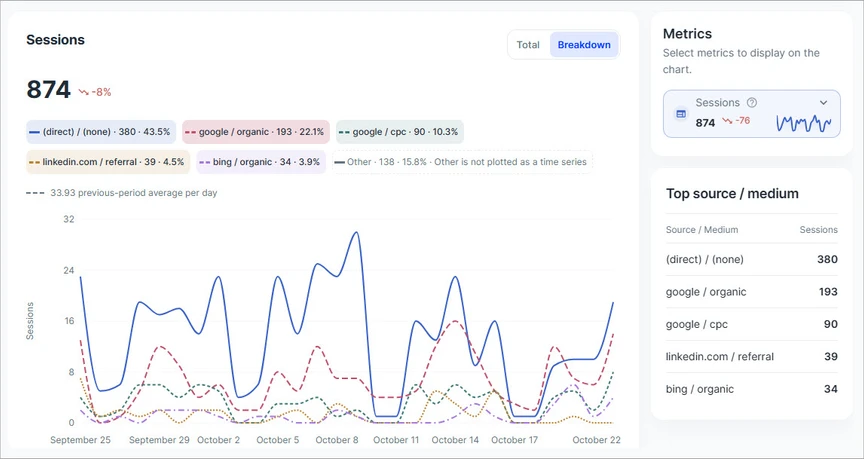
The main trend chart works similarly to the Channels view but groups traffic by source / medium combinations.
Select Breakdown to display separate trend lines for the leading sources.
Use this chart to:
-
Identify which traffic sources contribute most to website visits.
-
Monitor changes in individual sources over time.
-
Compare organic, paid, direct, and referral traffic patterns.
-
Investigate sudden increases or decreases in traffic from specific sources.
You can also switch to Total to focus on the overall trend or expand Show chart data table to inspect daily values.
Review top source / medium
The Top source / medium section highlights the leading traffic sources based on Sessions.
Each entry represents a specific source and medium combination, together with its total session count.
Use this section to quickly identify the individual sources bringing the most visitors to your website.
Understand traffic share by source / medium
The Traffic share by source / medium section visualizes how total sessions are distributed among individual source / medium combinations.
A stacked horizontal bar displays the relative contribution of the leading sources, with session counts and percentages shown alongside it.
Less significant sources are grouped under Other.
Use this visualization to determine whether your website relies heavily on a particular traffic source or receives traffic from a diverse set of sources.
Note: Percentages represent the share of total Sessions for the selected reporting period.
5. Review source / medium performance
The Details section provides a more comprehensive view of acquisition performance.
While the charts focus on traffic volume and trends, this section helps you examine visitor engagement, important actions, and revenue associated with different traffic sources.
Explore performance views
The Details section includes the following tabs:
| Tab | Description |
|---|---|
| Source / medium performance | Displays detailed acquisition data and performance metrics for individual source / medium combinations. |
| Top referrers | Focuses on traffic originating from referring websites. |
| Top search engines | Focuses on traffic attributed to search engines. |
Select a tab to switch between these views.
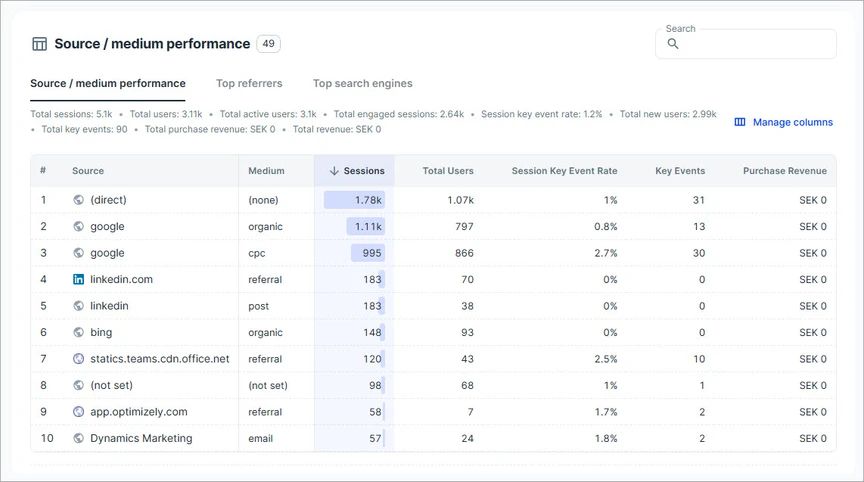
Where displayed, the count beside a tab indicates the number of entries available in that view.
Understand performance metrics
The performance section includes metrics that help you evaluate both traffic quantity and quality.
| Metric | Description |
|---|---|
| Users | The total number of unique users who visited the website during the selected period. |
| Active Users | The number of distinct users who were active or engaged with the website according to Google Analytics. |
| New Users | The number of users who interacted with the website for the first time. |
| Sessions | The total number of sessions initiated during the selected reporting period. |
| Engaged Sessions | The number of sessions that met Google Analytics engagement criteria. |
| Session Key Event Rate | The percentage of sessions in which at least one key event occurred. |
| Key Events | The number of occurrences of events marked as key events in Google Analytics. |
| Purchase Revenue | Revenue generated from tracked purchases, where ecommerce tracking is configured. |
These metrics help you understand whether a traffic source is simply generating visits or also encouraging meaningful visitor activity.
For example, a source may generate a large number of sessions but relatively few engaged sessions or key events. Another source may deliver less traffic while producing stronger engagement and more key events.
Review these metrics together to make more informed decisions about your acquisition strategy.
Note: Available metrics and their values depend on the connected Google Analytics property's configuration, event tracking, and selected report settings.
Search and customize performance data
Use the controls in the Details section to explore the data more efficiently.
Search
Use the Search field to locate a particular source or medium within the performance table.
This is useful when investigating a specific search engine, referral website, or campaign-related traffic source.
Manage columns
Select Manage columns to customize which performance metrics appear in the table.
Choose the metrics most relevant to your analysis to focus on traffic volume, engagement, key events, or revenue.
6. Common tasks
Identify your most important traffic channels
-
Select Channels.
-
Review Top channels to identify the leading channels by Sessions.
-
Use Channel mix to compare each channel's contribution to overall traffic.
Investigate changes in traffic
-
Select the reporting period using Period.
-
Review the Sessions summary and its comparison indicator.
-
Select Breakdown in the trend chart.
-
Compare the individual traffic groups to identify which ones contributed to the change.
-
Expand Show chart data table if you need to inspect daily values.
Find your strongest traffic sources
-
Select Source / Medium.
-
Review Top source / medium and Traffic share by source / medium.
-
Open Source / medium performance in the Details section.
-
Compare Sessions, Engaged Sessions, Session Key Event Rate, and Key Events to evaluate performance.
Investigate referral and search traffic
-
Select Source / Medium.
-
Scroll to the Details section.
-
Select Top referrers to review referring websites or Top search engines to review search traffic.
-
Use Search and Manage columns to focus on the information you need.
Identify peak traffic hours
-
Open Channels.
-
Scroll to Traffic by hour of day.
-
Select Sessions to analyze visits or Event Count to analyze activity.
-
Review the Peak indicator and compare the hourly values.
7. Important notes
-
Reporting period: All summary metrics, charts, and performance tables use the selected reporting period unless otherwise indicated.
-
Comparison data: Percentage changes compare the current reporting period with the previous equivalent period.
-
Traffic attribution: Channel and source / medium classifications depend on the attribution and traffic classification rules applied by Google Analytics.
-
Unavailable attribution: Some sessions may be categorized as Direct or have unavailable source information when attribution data cannot be determined.
-
Reporting time zone: Hourly traffic data uses the connected Google Analytics property's configured time zone.
-
Data availability: Some metrics may be unavailable or show no data when the required tracking events or ecommerce configuration are not present.
The Traffic Acquisition report provides both a high-level view of where website traffic originates and a detailed view of how individual sources contribute to engagement and important business outcomes.