The Live report provides a real-time overview of visitor activity on your website using data from Google Analytics 4 (GA4). It helps you understand how visitors are interacting with your website right now, which pages they are viewing, where they are located, and what actions they are performing.
Use Live report to monitor current traffic, verify that analytics tracking is working, and observe the immediate impact of content updates, marketing campaigns, or website launches.
Access the Live report
-
Open the AI Assistant manager.
-
Navigate to Traffic Insights → Live.
-
Use the Sites dropdown at the top of the page to select the website you want to monitor.
-
The report displays the latest available activity from the selected site's connected Google Analytics property.
The Updated timestamp in the upper-right corner indicates when the report was last updated.
Note: Live data is provided by Google Analytics and may have a short processing delay. It should not be interpreted as an exact, second-by-second count of visitors currently browsing your website.
Monitor live activity
The Live section provides an overview of visitor activity during the last 30 minutes.
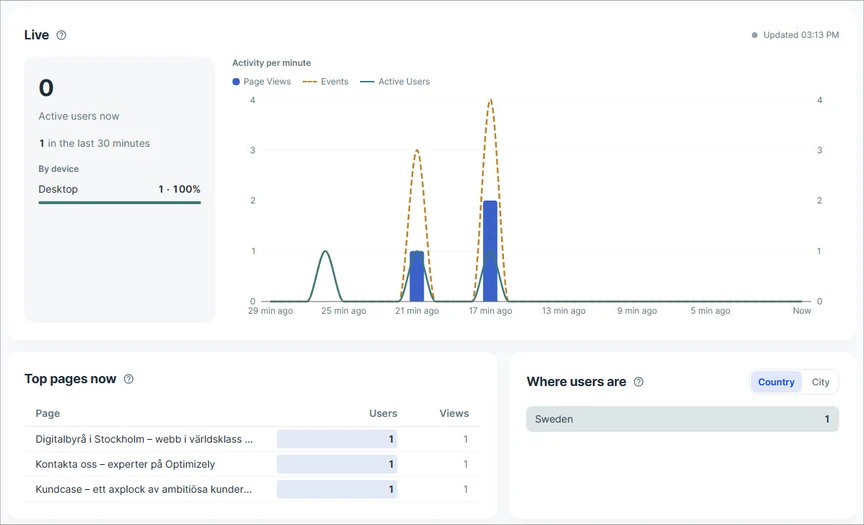
It includes the following information:
-
Active users now: The number of active users reported by GA4 for the recent real-time reporting window.
-
Last 30 minutes: A summary of active user activity within the reporting period.
-
By device: A breakdown of recent visitor activity by device category, such as desktop, mobile, and tablet.
The Activity per minute chart shows how activity changes over time, covering the last 30 minutes.
The chart includes three metrics:
-
Page Views: The number of page views recorded during each minute.
-
Events: The number of tracked events triggered during each minute, such as page views, clicks, or other configured interactions.
-
Active Users: The number of active users recorded during each minute.
Use this chart to identify traffic spikes, understand short-term visitor behavior, and observe the immediate effect of activities such as publishing new content or launching a campaign.
Example: After publishing a new article or sharing a campaign link, open the Live report to check whether page views and visitor activity increase over the following minutes.
Identify popular pages
The Top pages now section shows which pages are receiving visitor activity during the last 30 minutes.
Use this section to understand which content is attracting attention at the moment.
Questions you can answer:
-
Which pages are visitors viewing right now?
-
Is a newly published page receiving traffic?
-
Which content is attracting attention after a campaign launch?
-
Are visitors reaching the expected pages?
What to look for:
-
Pages with recent visitor activity.
-
Pages receiving the highest number of views.
-
Newly published or promoted pages appearing in the results.
Example: After publishing a blog post and sharing it on social media, check Top pages now to confirm that visitors are reaching the new content.
Identify popular pages
The Top pages now section shows which pages are receiving visitor activity during the last 30 minutes.
Use this section to understand which content is attracting attention at the moment.
Questions you can answer:
-
Which pages are visitors viewing right now?
-
Is a newly published page receiving traffic?
-
Which content is attracting attention after a campaign launch?
-
Are visitors reaching the expected pages?
What to look for:
-
Pages with recent visitor activity.
-
Pages receiving the highest number of views.
-
Newly published or promoted pages appearing in the results.
Example: After publishing a blog post and sharing it on social media, check Top pages now to confirm that visitors are reaching the new content.
Explore visitor locations
The Where users are section shows the geographic distribution of recent visitors.
You can switch between two views:
-
Country: View visitor activity grouped by country.
-
City: View visitor activity grouped by city.
Use this section to understand where your current audience is located and whether your website is reaching the intended geographic markets.
Questions you can answer:
-
Which countries are generating traffic right now?
-
Which cities are visitors coming from?
-
Is a geographically targeted campaign attracting visitors from the expected locations?
-
Are visitors arriving from new or unexpected markets?
Example: If you launch a campaign targeting a specific country, use the Country view to check whether visitors from that location appear in recent activity.
Note: Geographic data is determined by Google Analytics and may not always identify a visitor's exact location. Results also follow the geographic scope configured for the site's analytics connection.
Explore top events
The Top events section shows the events recorded by Google Analytics during the last 30 minutes.
Events represent interactions that occur on your website. Depending on your GA4 configuration, these may include:
-
page_view: A visitor views a page. -
session_start: A new session begins. -
first_visit: A visitor accesses the website for the first time. -
scroll: A visitor reaches the configured scroll threshold. -
click: A tracked link click occurs. -
Custom events configured for your website.
Use this section to understand what visitors are doing beyond simply viewing pages.
Questions you can answer:
-
Which events are occurring most frequently?
-
Are visitors interacting with the website as expected?
-
Are newly configured events being recorded?
-
Did a recent campaign or content update generate additional interactions?
Example: After implementing tracking for a new interaction, perform that action on your website and check Top events to see whether the event appears.
Note: The events available in this report depend on your website's GA4 tracking configuration. Not all interactions are automatically tracked, and not every event is a key event.
Understand periods with no activity
If Google Analytics has not recorded any activity during the last 30 minutes, some sections may display:
No activity in the last 30 minutes
This message can appear in:
-
Device activity.
-
Top pages now.
-
Where users are.
-
Top events.
An empty chart or a value of zero does not necessarily indicate a problem. It may simply mean that no tracked visitors or interactions were recorded during the reporting period.
If you expect traffic but no activity appears:
-
Verify that the correct website is selected in the Sites dropdown.
-
Confirm that the website is connected to the intended GA4 property.
-
Check that Google Analytics tracking is correctly installed and enabled on the website.
-
Visit a tracked page and perform an interaction to generate activity.
-
Allow a short time for Google Analytics to process the events, then check the report again.
-
Verify that consent settings, tracking restrictions, or geographic filters are not excluding the expected activity.
If the problem continues, review your Google Analytics configuration or contact your administrator.